
Issue 1: Color Cast in Hikvision Cameras When the Scene Contains a Large Area of a Single Color
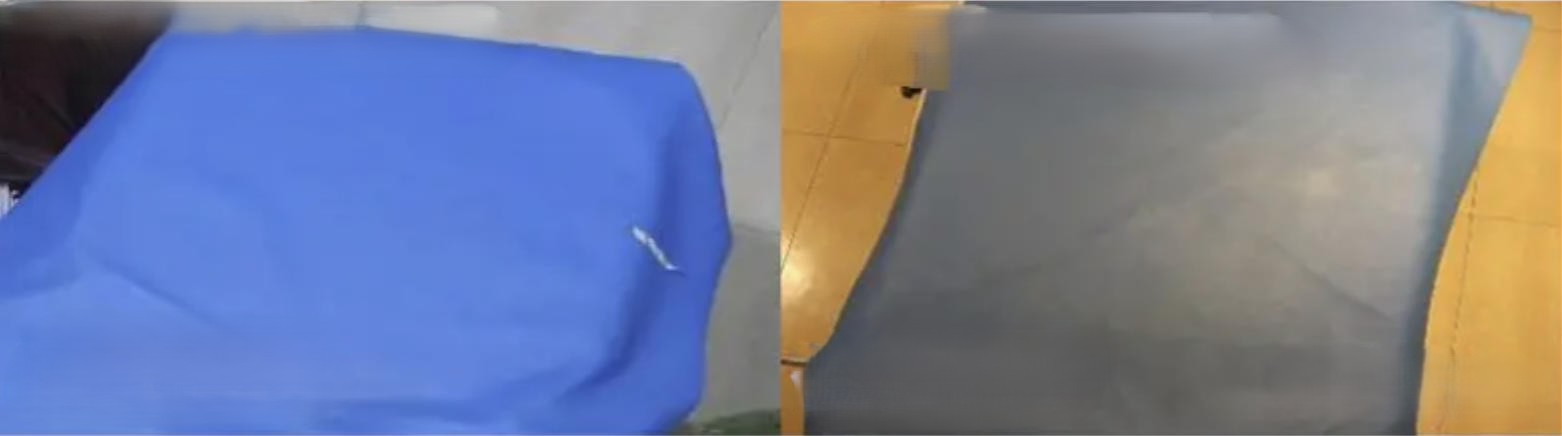
Cause
A large area of a single-color object interferes with the white balance algorithm, resulting in color cast.
Solution
Switch to another white balance mode (How to adjust Hikvision camera white balance mode?). If the scene color temperature is relatively constant, manual white balance can be used.
Issue 2: Color Cast When Hikvision Cameras Are Used in Special Lighting Environments Such as Hotels
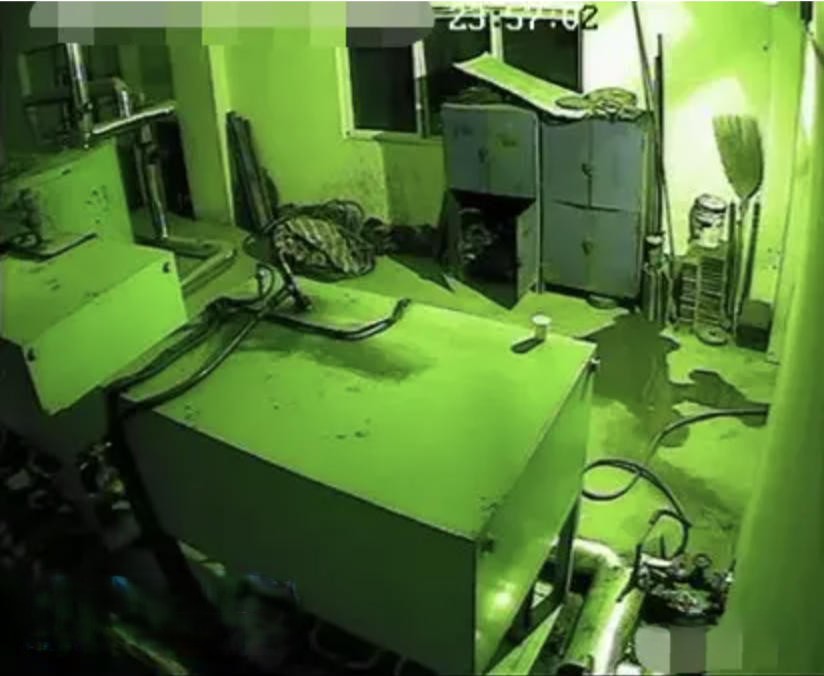
Cause
The color temperature of the on-site lighting is unusual and exceeds the processing range of the camera’s white balance, resulting in abnormal colors.
Solution
Try other white balance modes (How to adjust Hikvision camera white balance mode?). If the issue still cannot be resolved, you can enter “transfer to manual service” to contact customer support for further troubleshooting.
Notes
- High color temperature = cooler colors, usually bluish
- Low color temperature = warmer colors, usually yellowish
- On cloudy days the color temperature is high, so cameras tend to appear bluish. This is commonly seen in shaded areas on sunny days or during early morning and evening.
- On sunny days the color temperature is moderate, and color cast is less likely to occur.
At sunset the color temperature is low, so the images captured by cameras appear warmer. Most sunset photos appear yellowish.
Issue 3: Yellowish Image Under Street Lights
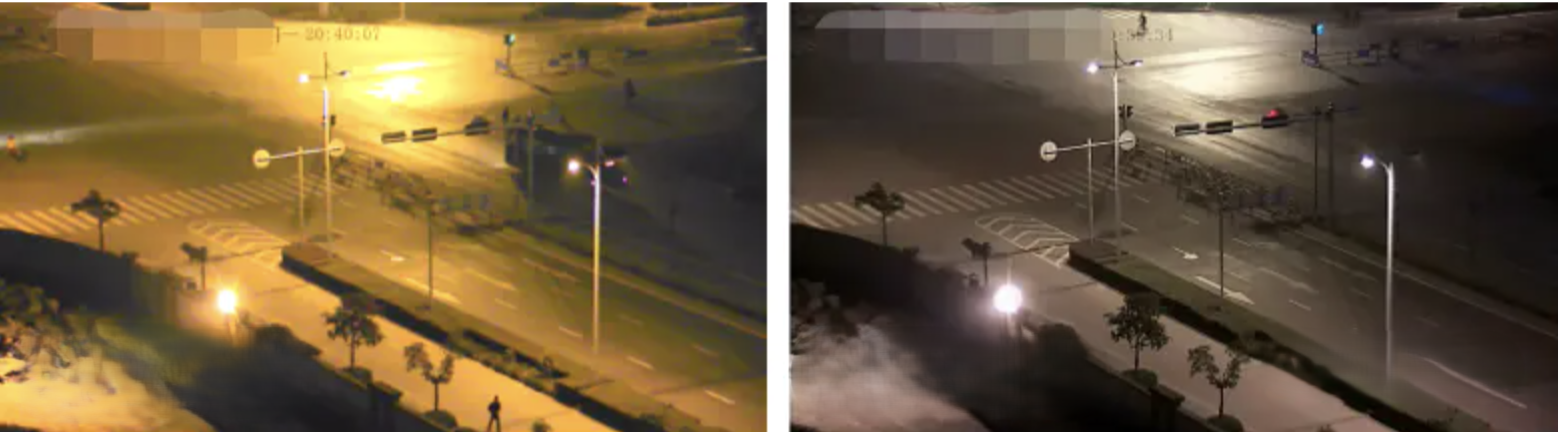
Cause
Street lights have a relatively low color temperature, which causes the image to appear yellow or warm.
Solution
Enable Sodium Lamp White Balance.
Notes
Why is sodium lamp white balance not the default setting?
Sodium lamp white balance is an algorithm designed for low color temperature lighting conditions. However, because its color temperature adjustment range is relatively narrow, its correction effect in normal environments is not as good as the automatic mode. Therefore, it is not recommended for non-sodium lamp scenarios.
White balance modes:
- Auto – Corrects color temperature based on the current frame and meets most scenarios.
- Auto Tracking – Corrects the current frame based on the color temperature of previous frames with a wider search range.
- Sodium Lamp White Balance – Color correction for special sodium lamp lighting (suitable for street lights).
- Manual – Suitable for scenes where color remains relatively constant.
Issue 4: Color Cast in Scenes With Two Color Temperatures (Dual Color Temperature)
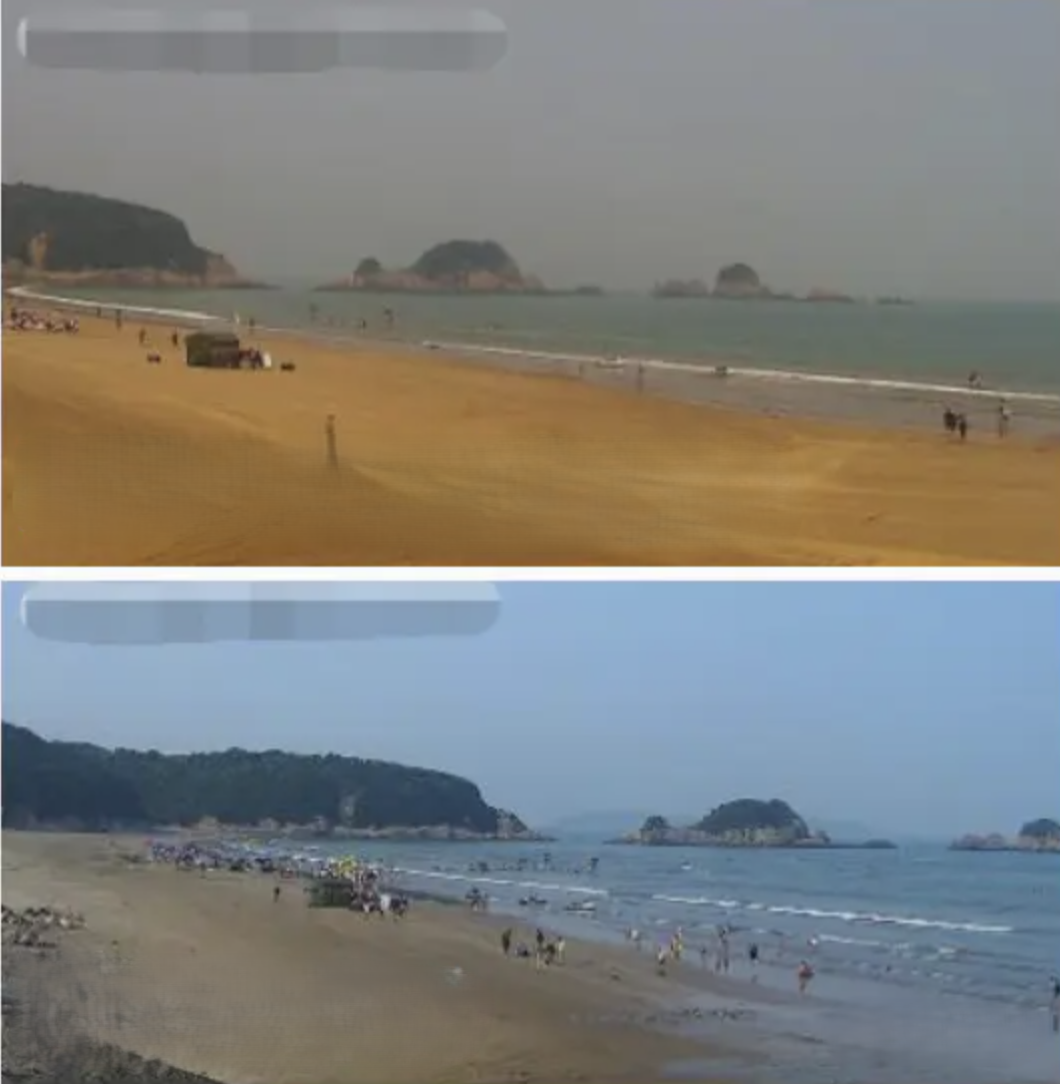
Cause
This is a common dual color temperature issue in cameras.
Simply put, for example: the beach appears yellow (warm tone), while the distant sea and sky appear blue (cool tone). When warm and cool color temperatures appear simultaneously, correcting one color temperature often causes the other to become inaccurate. One part of the scene appears normal while another shows color cast.
Solution
- Improve the issue by adjusting the camera scene or modifying white balance.
- If the issue cannot be solved after adjusting white balance, contact Hikvision technical support for further troubleshooting.
Issue 5: Outdoor Bright Objects Appear Faded, Image Looks Grayish
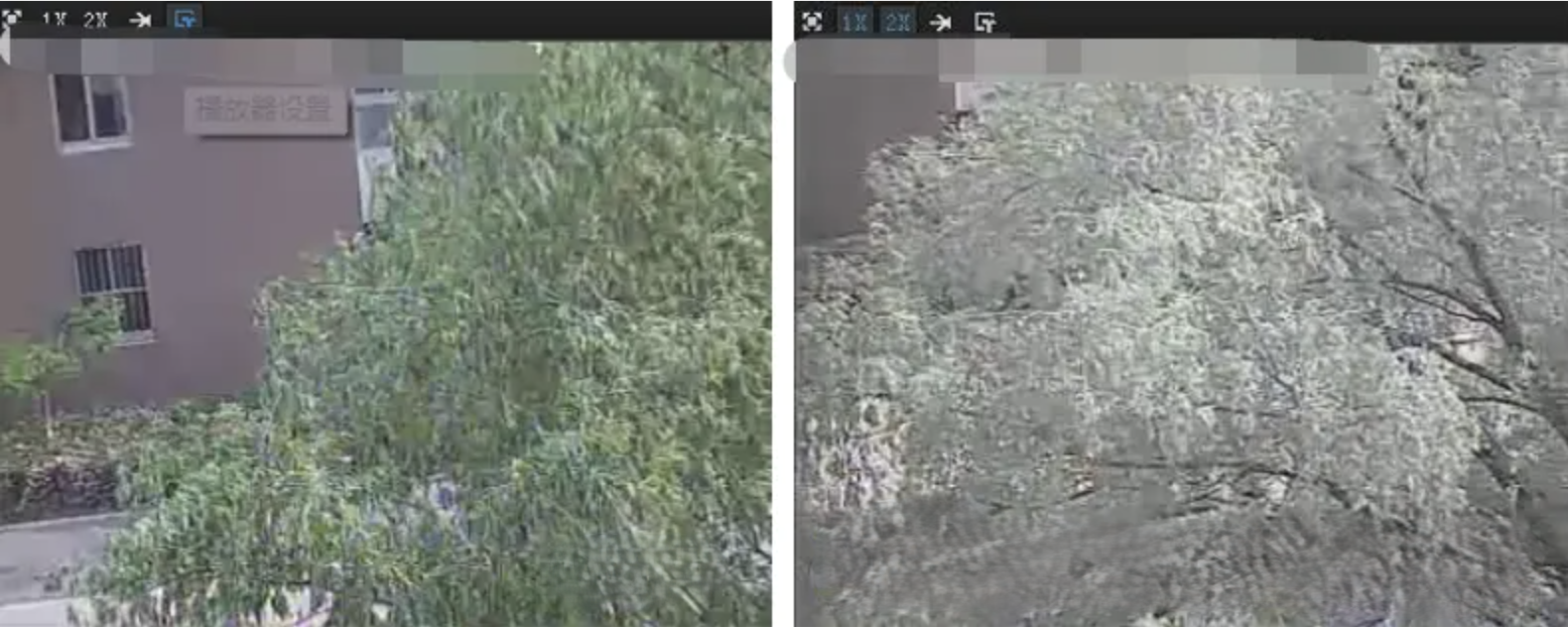
Cause
The camera uses a dual-peak filter, which allows infrared light to pass through during the daytime. When infrared light is present during the day, colors appear faded and the image looks grayish.
(This usually occurs in electronic day/night infrared cameras; other camera types rarely have this issue.)
Solution
This may occur due to limited camera performance. Increasing saturation may improve the situation.
(Path: Access the camera web interface → Configuration → Image → Display Settings → Saturation)
Notes
- Dual-peak filter: Uses a fixed dual-peak filter that allows both visible light and infrared light to pass through.
- Infrared cut filter: Only senses visible light; infrared light cannot be detected during day or night.
- ICR filter: Uses a mechanical infrared filter. During the day it blocks infrared light to ensure image quality; at night it removes the filter so the full spectrum can reach the sensor.
Issue 6: Periodic Image Color Changes (Color Rolling)
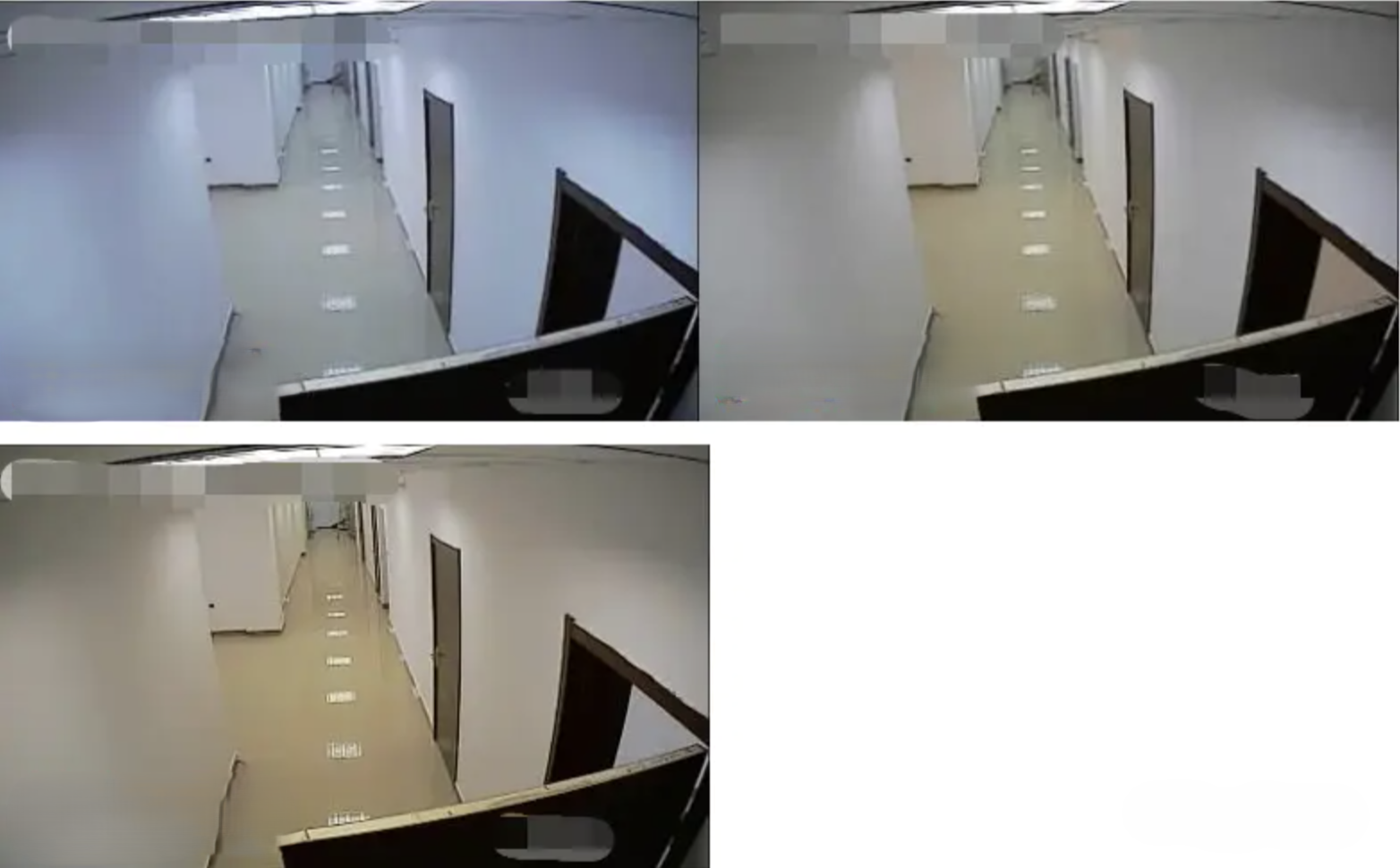
Cause
- The lighting characteristics of fluorescent lamps change with fluctuations in AC voltage. When the frequency of the fluorescent lamp is not synchronized with the camera sampling frequency, the captured color will vary each time the camera samples the scene.
- The shorter the camera sampling time, the greater the difference in color information captured each time. For example, if the shutter is set to 1/10,000 s, the color rolling phenomenon becomes easier to observe.
- Some cameras have limited white balance processing speed. When image information changes rapidly, the white balance calculation cannot keep up with the changes, resulting in incorrect color correction.
Solution
- Lighting environment
- Use incandescent lamps or other thermal light sources that do not change with AC voltage.
- Use lamps powered by high-frequency electronic ballasts, such as modern fluorescent lamps (working frequency about 2k–3kHz). This can avoid color rolling in most indoor environments.
- Synchronize camera and power supply
- Use AC 24V power supply so that the camera sampling frequency is synchronized with the power supply.
- Auto-iris lens
- Use an auto-iris lens and reduce the shutter speed (for example, 1/50 s).
Issue 7: Image Appears Red or Purple (ICR Filter Stuck)
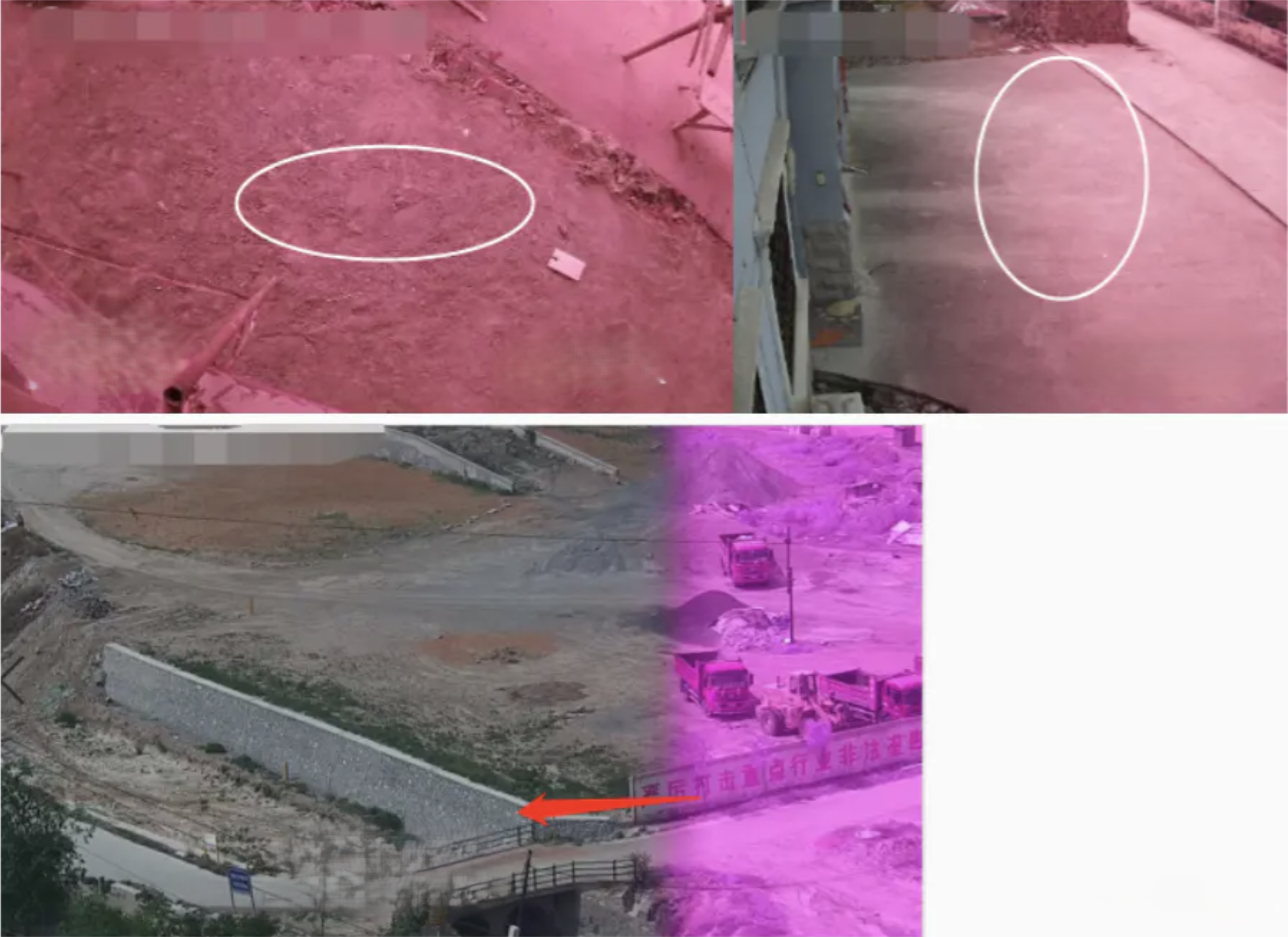
Cause
The camera’s ICR filter is stuck.
Solution
Try manually switching the day/night mode (Log in to camera IP → Configuration → Basic Configuration → Image → Display Settings → Day/Night Parameters). If the issue still persists, contact Hikvision after-sales service.
Notes
Bullet cameras, dome cameras, and PTZ cameras are generally designed for fixed installation and fixed monitoring. If a standard camera is installed in environments with strong vibration (such as vehicles), it may cause the ICR filter to become stuck, screws to loosen, or even video loss.
Important: Standard cameras should not be used in high-vibration environments such as vehicle installations.
Issue 8: Purple Fringing on Image Edges
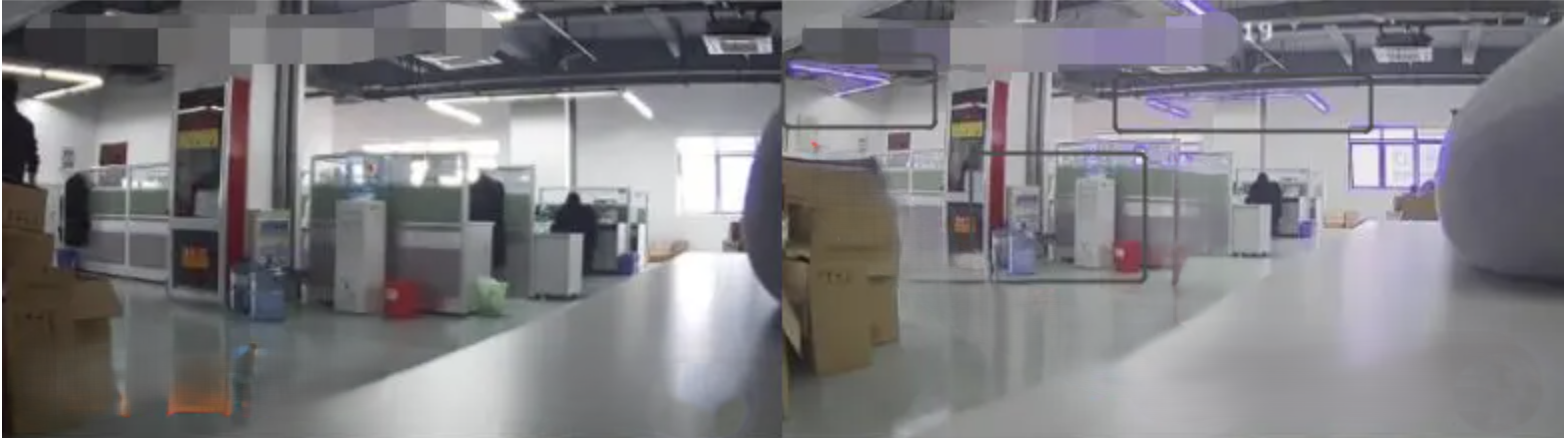
Cause
Purple fringing occurs under strong contrast conditions. When bright and dark areas meet abruptly without transition, chromatic dispersion may appear at the boundary (for example, at window edges). Purple fringing is also related to the lens’s chromatic aberration control ability, the image sensor pixel density (higher pixel density increases dispersion probability), and internal processing algorithms (such as WDR).
Solution
- Disable the camera’s WDR (Wide Dynamic Range) function.
- If disabling WDR does not improve the issue, use a lens with better chromatic aberration control.
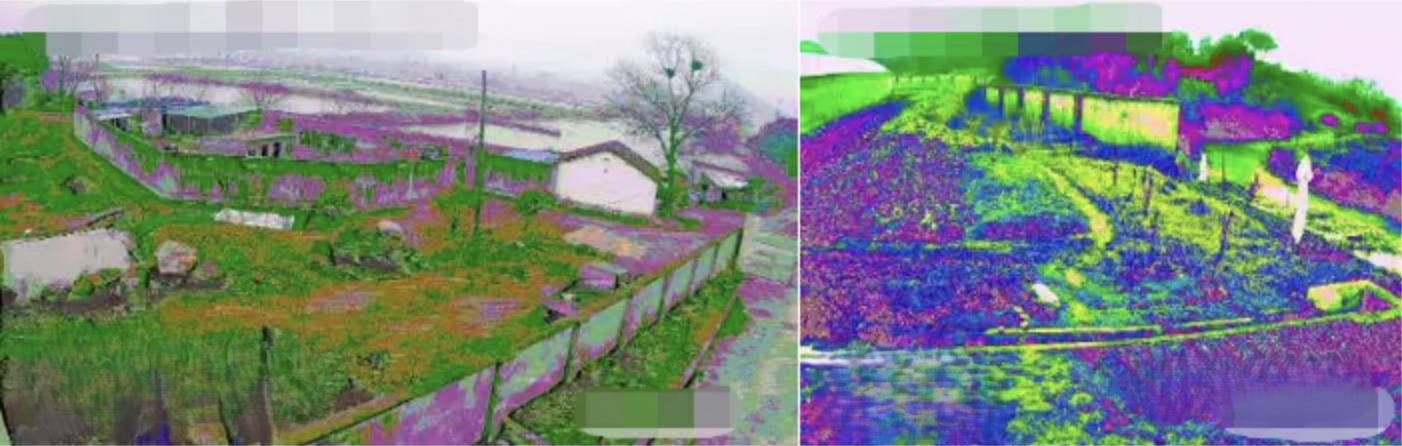
Issue 9: Entire Image Color Abnormal or Screen Distortion
Cause
Camera cable issues or other internal problems.
Solution
First restore the camera to factory settings (it is recommended to upgrade to the latest firmware version). If the problem persists, contact Hikvision after-sales service.
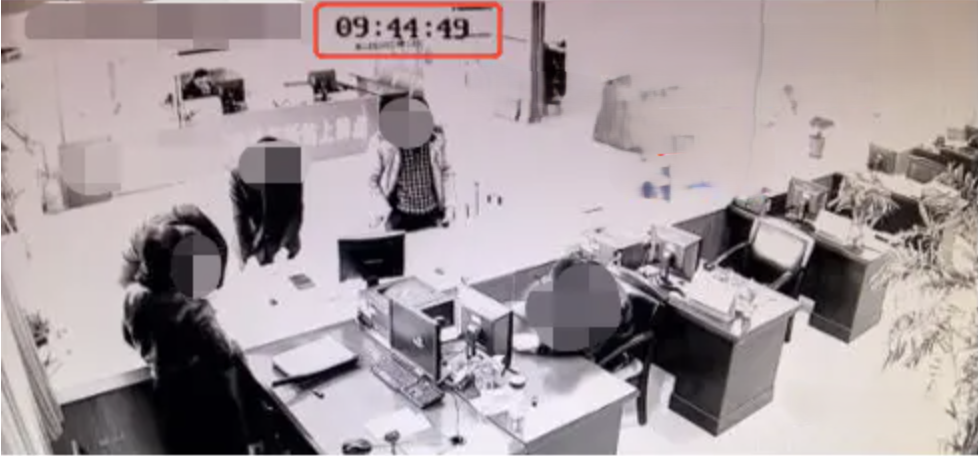
Issue 10: Hikvision Camera Displays Black and White During the Day
Possible Causes
- Day/Night mode is set to black and white.
- Exposure parameters are abnormal, and brightness, saturation, and contrast are all set to 0.
- The camera has entered infrared anti-oscillation mode and will remain in black and white for 1 hour.
- The network camera CPU usage is too high.
- The photosensitive resistor is damaged or abnormal.
- HDTVI camera is connected to existing analog transmission equipment (such as distributors or optical transceivers).
Solution
Causes 1–4: Restore the camera parameters to check whether it is a configuration issue.
Cause 5: Contact after-sales service for repair.
Cause 6: HDTVI cameras cannot be connected to existing analog transmission equipment.
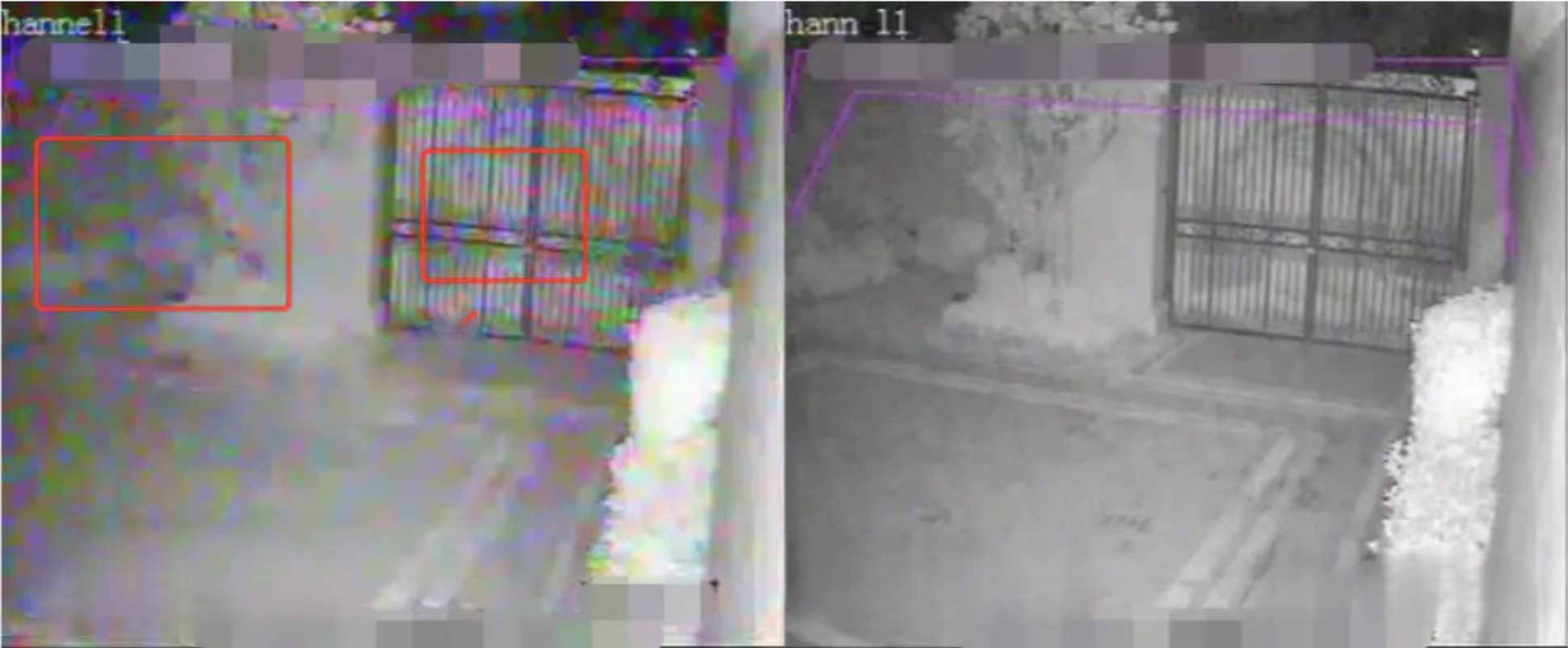
Issue 11: Colored Noise Flickering at Night (Analog Cameras)
Cause
After analog cameras switch to black-and-white mode at night, the signal no longer contains color synchronization signals. However, some third-party video distributors or optical transceivers may transmit signals containing color synchronization information. The interference signal may then be interpreted as color synchronization, resulting in colored noise flickering when connected to the DVR.
Solution
- It is recommended to use Hikvision video distributors or optical transceivers.
- Contact the third-party manufacturer for modification.