
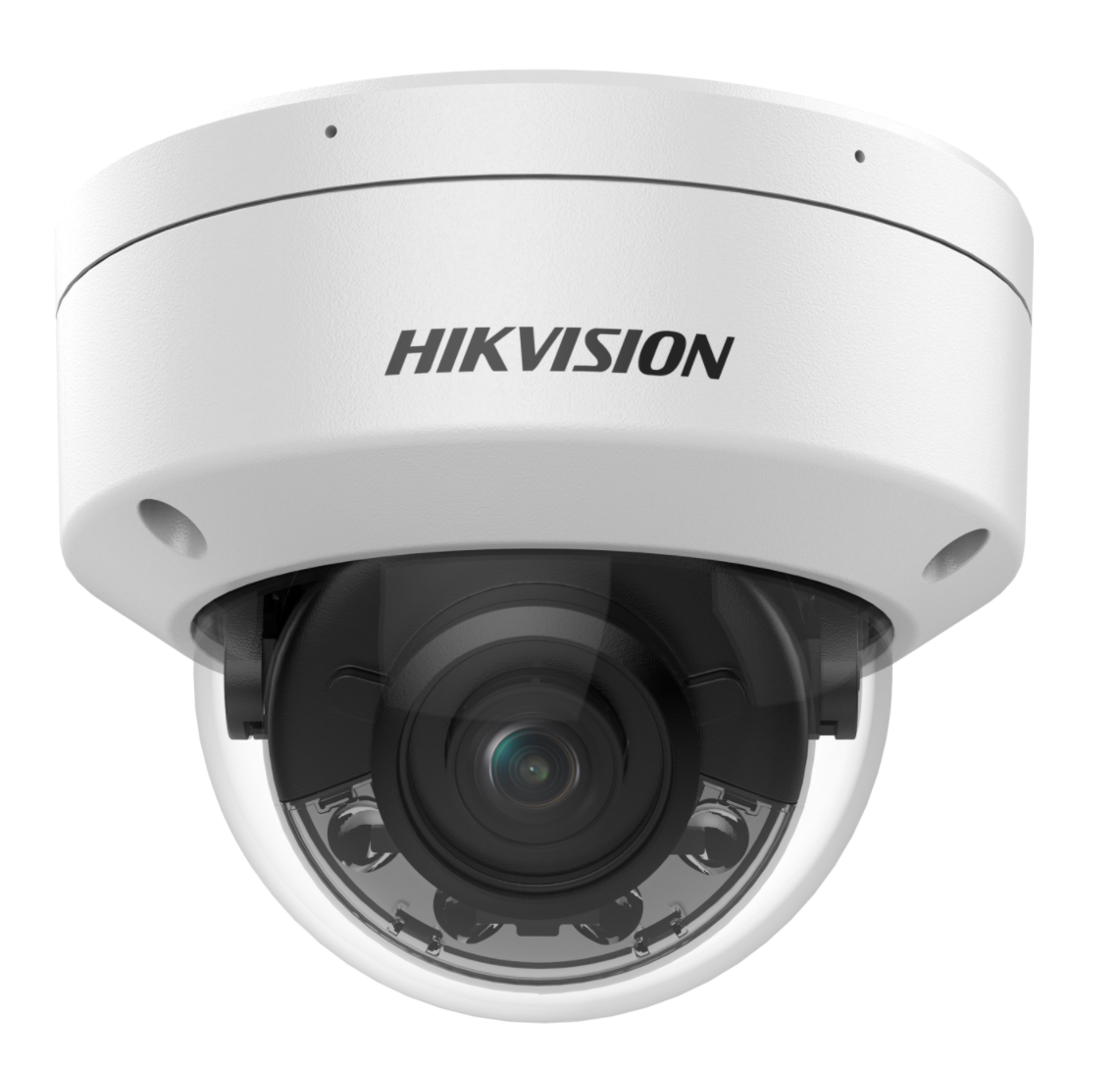
If your Hikvision DeepinMind FA series face recognition system cannot perform face comparison or the comparison results are abnormal, it is usually related to configuration, storage, or face library settings.
This guide explains the most common causes and solutions.
1. Check Whether the DeepinMind Device Has a Hard Drive Installed
All AI functions of the DeepinMind NVR require a hard drive.
If no HDD is installed:
- Face snapshots cannot be stored
- Event records cannot be saved
- Alarm logs cannot be generated
- Face comparison records cannot be queried
Solution
Install a compatible surveillance HDD and ensure the disk status is Normal.
Path:
Configuration → Storage → HDD Management
2. Check Whether the Device System Time Is Correct
If the device time is incorrect:
- Face capture records may not appear when searching
- Records will only appear according to the incorrect device time
Solution
Synchronize the device time.
Path:
Configuration → System → Time Settings
It is recommended to enable NTP time synchronization.
3. Check the AI Engine Mode and Engine Status
Go to:
Configuration → System → Intelligent Configuration
Verify the following:
| Item | Correct Status |
|---|---|
| Engine Mode | Face Recognition |
| Engine Status | Running |
| Associated Channels | Matches actual camera channels |
If the engine is not running, the system cannot perform face comparison.
4. Check Whether Face Comparison Is Enabled
Go to:
Configuration → Event → Face Comparison
Check the following settings:
- Face comparison is enabled
- Arming schedule matches your testing time
- Default arming time is 24/7
Also check whether Non-Real-Time Face Comparison is enabled.
If enabled by mistake, disable it and test again.
5. Check Face Library Association and Similarity Threshold
Go to:
Configuration → Event → Face Comparison → Face Library
Make sure:
- At least one face library is selected
- The similarity threshold is reasonable
Example threshold settings:
| Threshold | Meaning |
|---|---|
| 90% | Very strict recognition |
| 80% | Recommended |
| 70% | Loose recognition |
If recognition fails frequently, try lowering the threshold.
6. Check Face Library Modeling Status
After importing face images, the system must perform face modeling.
Only images with status:
Modeling Successful
can be used for face comparison.
Images with the following status cannot be used:
- Modeling Failed
- Not Modeled
Path:
Face Library Management
7. Check Whether the Device Receives Face Capture Alarms
Go to:
Configuration → System → System Maintenance → Log
Check Alarm Logs.
Look for:
- Face Capture Event
- Face Detection Event
If no logs exist, the NVR did not receive any face capture events from the camera.
Possible causes:
- Camera configuration issue
- Network issue
- Camera face detection not enabled
8. Check Whether Face Capture Images Are Uploaded
Login to the web interface and check:
Picture → Search → Select Channel → All Types
If no images appear, check the camera settings.
Important setting on the camera:
Enable Background Image Upload
⚠ If background image upload is not enabled, the DeepinMind device cannot store face images.
9. Check Face Scoring Settings
Go to:
Configuration → System → Intelligent Configuration → Face Scoring
When Face Scoring is enabled:
- Each captured face image receives a quality score
- Images with low scores will not be compared
Example reasons for low scores:
- Face too small
- Face partially blocked
- Poor lighting
Solution
Temporarily disable Face Scoring for testing.
10. Check Upload Settings for Platform or Client
If you want to upload face recognition results to:
- iVMS-4200
- Hik-Connect / EZVIZ
- Third-party platforms
You must enable:
Upload Center
Otherwise:
- Results are stored locally only
- Platforms will not receive any data
Summary
If the Hikvision DeepinMind FA series device does not perform face comparison, the most common causes are:
- No hard disk installed
- Incorrect system time
- AI engine not running
- Face comparison not enabled
- Face library not linked
- Face images not modeled successfully
- Camera not sending capture events
- Background image upload disabled
- Face scoring filtering images
- Upload center not enabled